Fills
Filling in Python Turtle uses the functions turtle.begin_fill() and turtle.end_fill(). TurtleThread uses a very
similar approach!
Using begin_fill() and end_fill()
When you wish to begin filling a shape, use the
begin_fill(...)function. The function accepts aFillobject, which determines how the shape is to be filled.The easiest method to fill is to use the
begin_fill()andend_fill()functions without any parameters. TurtleThread will automatically find an optimal angle to fill the polygon for you.1import turtlethread 2 3t = turtlethread.Turtle() 4 5# Simply call the begin_fill() function without any parameters! 6t.begin_fill() 7 8# Draw a triangle 9with t.running_stitch(25): 10 for i in range(3): 11 t.forward(100) 12 t.right(120) 13 14# You must call the end_fill() function, or the shape will not be filled! 15t.end_fill() 16 17t.fast_visualise(scale=2) # fast_visualise because fills can take a long time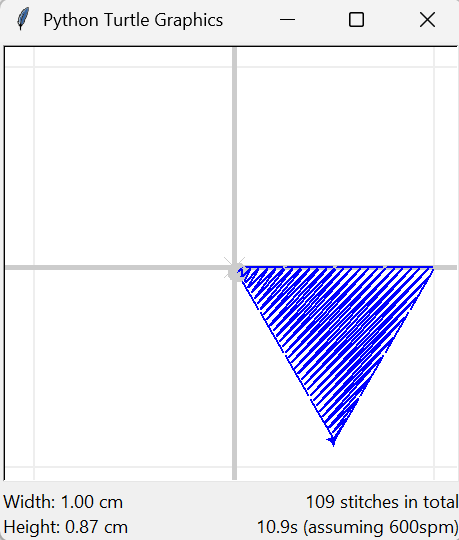
Hollow fills
Sometimes, it may be desirable to create a ‘hollow’ shape, or in other words, a filled polygon with some sections within cut out. In this case, a hollow fill can be used.
To create a hollow fill, trace the outline of the overall shape first. Then using a jump stitch, jump to the location within the shape where you wish to ‘cut out’ the filling. Thereafter, trace the outline of the inner ‘hole’ using any regular stitch.
 1import turtlethread
 2
 3t = turtlethread.Turtle()
 4
 5# The close=False argument must be passed for hollow fills!
 6t.begin_fill(closed=False)
 7
 8# Draw a large square
 9with t.running_stitch(25):
10    for i in range(4):
11        t.forward(200)
12        t.left(90)
13
14# Use a jump stitch to 'jump' to the inner part of the filled shape
15with t.jump_stitch():
16    t.forward(50)
17    t.left(90)
18    t.forward(50)
19    t.right(90)
20
21# Draw the inner square
22with t.running_stitch(25):
23    for i in range(4):
24        t.forward(100)
25        t.left(90)
26
27t.end_fill()
28
29t.fast_visualise() # fast_visualise because fills can take a long time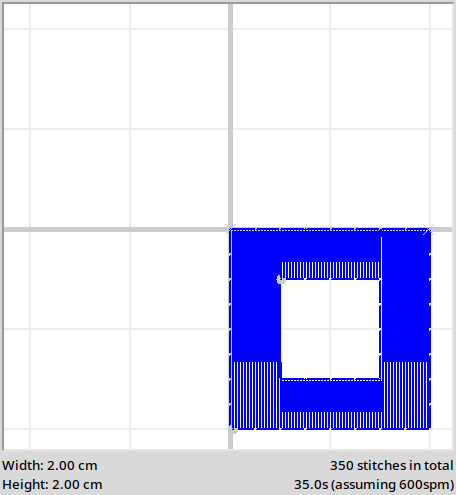
ScanlineFill
For more control over the fill, you may pass a
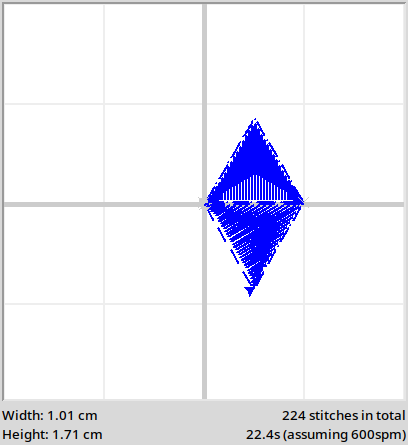
Fillinto thebegin_fill()function. As of now, the onlyFillavailable is theScanlineFill. It accepts anangleargument, which sets the direction of the fill. Alternatively, the string'auto'may be passed to theangleargument to allow TurtleThread to automatically decide a direction.It is recommended that
angleshould be set manually for better performance.1import math 2import turtlethread 3from turtlethread import fills 4 5t = turtlethread.Turtle() 6 7# If the string 'auto' is passed to ScanlineFill, it will automatically try multiple angles and choose the one that 8# minimizes the number of jump stitches. 9t.begin_fill(fills.ScanlineFill("auto")) 10 11with t.running_stitch(25): 12 for i in range(3): 13 t.forward(100) 14 t.right(120) 15 16t.end_fill() 17 18# You can also choose an angle (in radians) and pass it to ScanlineFill. 19t.begin_fill(fills.ScanlineFill(math.pi/6)) 20 21# Draw another triangle 22t.right(180) 23with t.running_stitch(25): 24 for i in range(3): 25 t.forward(100) 26 t.right(120) 27 28t.end_fill() 29 30t.fast_visualise() # fast_visualise because fills can take a long time