Drawing Text
Using SimplexLetterDrawer
Added in version 0.3.0.
This will draw letters using the “Simplex” font, which is fast, lightweight, and thin.
1import turtlethread
2
3t = turtlethread.Turtle()
4t.goto(-200, -50)
5
6sld = turtlethread.SimplexLetterDrawer(t) # can set triple_stitch_length, as this uses triple stitch
7sld.draw_string("hello\nworld")
8
9t.visualise()
Its output should look like this:
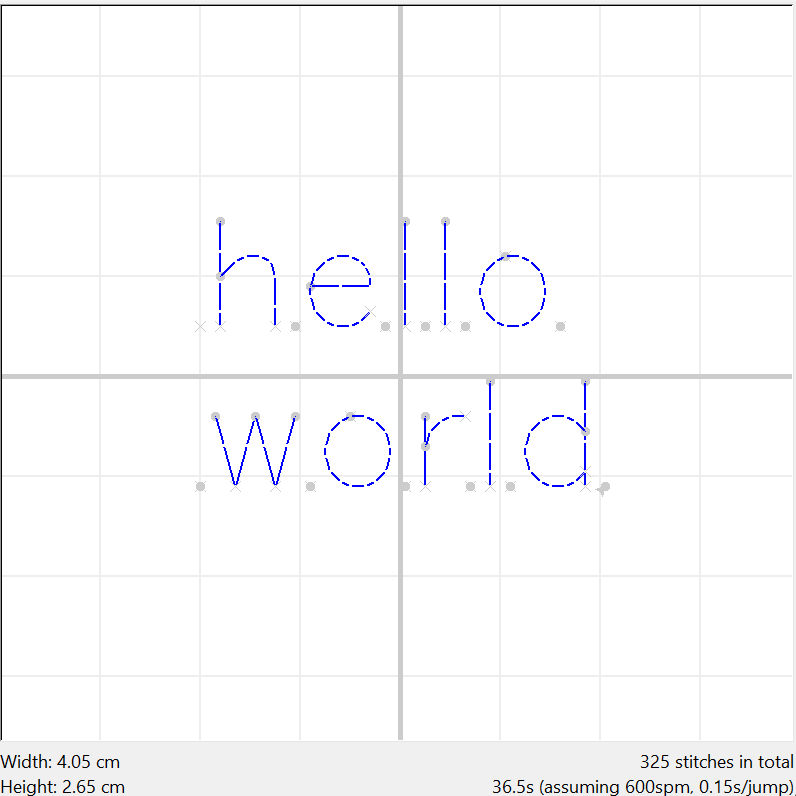
We can also set some other parameters:
1import turtlethread
2
3t = turtlethread.Turtle()
4t.goto(-200, -50)
5
6sld = turtlethread.SimplexLetterDrawer(t, bold=True, scale=7, newline_gap=40)
7sld.draw_string("hello\nworld")
8
9t.visualise()
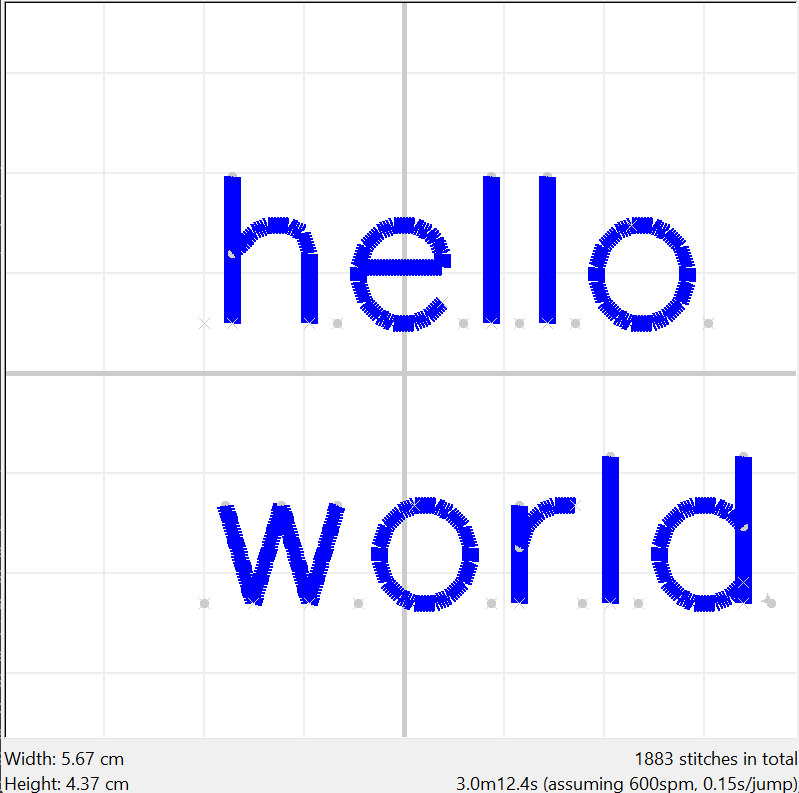
You can set initialize SimplexLetterDrawer(turtle, bold, scale, newline_gap, triple_stitch_length, center)`
if
boldisFalse(default), uses triple stitch; else, uses satin stitch (default width 20; settingboldto a nonzero integer also sets this width).scaledecides how large it is (default 5.0)newline_gapdecides how far down to go when going to a new line (default 32.0)triple_stitch_lengthis a parameter for triple stitch (default 30)centeris satin stitch parameters (default True)
Using the LetterDrawer
To draw text, we use a LetterDrawer object. Below is the recommended way to initialize it.
1import turtlethread
2
3turtle = turtlethread.Turtle()
4with turtlethread.LetterDrawer(turtle) as ld:
5    # We can use the letter drawer in this indented area
6    # Use LetterDrawer as 'ld' here...
In the indented block, we can use the LetterDrawer object, which is called ld. The LetterDrawer allows you to
utilize various functions to include text in your embroidery!
Loading Fonts (ld.load_font)
Before drawing text, we need to load some fonts. To load fonts, we use the ld.load_font function:
1    ld.load_font('Arial')
2    ld.load_font('Calibri')
This function will search your system’s installed fonts for the font file in order to load the font. As the system relies on using the filename of the font files, if you are unable to load a font that is already installed in your system, find where your system fonts are located in your filesystem, and use the file name of the font instead.
Generally, the filenames are one word, and similar to the first word of the name of the font.
Alternatively, we can also initialize the LetterDrawer with load_common_fonts=True to attempt to load the fonts
Arial, Helvetica, and Comic Sans MS automatically.
1with turtlethread.LetterDrawer(turtle, load_common_fonts=True) as ld:
2    # 'Arial' will already be loaded!
3    # Use LetterDrawer as 'ld' here...
Drawing Letters (ld.draw_one_letter)
To draw a letter with the letter drawer, we use ld.draw_one_letter.
1 ld.draw_one_letter('Arial', 'T', 120)
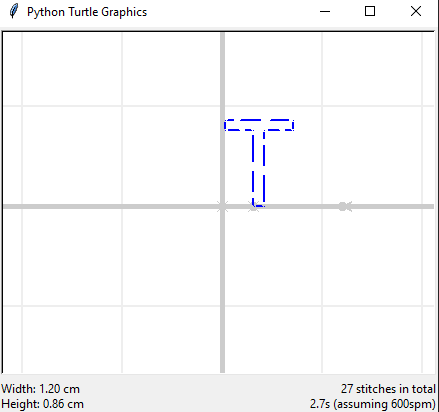
To draw a letter, we must first specify the font to draw it in, then the name of the letter to be drawn. Then, we should specify the font size. A font size 100 or higher is recommended, as it will appear much smaller in embroidery.
Note that ' ' (whitespace) should be inputted as 'space'.
More parameters of this function are detailed under the API reference.
Drawing gaps between Letters (ld.draw_letter_gap)
Between every two letters, there is a gap. To draw this gap, we use ld.draw_letter_gap.
1    ld.draw_one_letter('Arial', 'T', 120)
2    ld.draw_letter_gap()
3    ld.draw_string('Calibri', 'EX', 120)
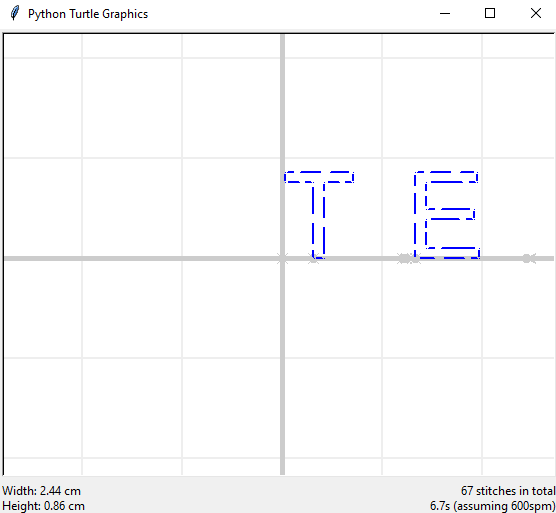
This function only takes in the font size of the text to draw the letter gap.
Note that if your letter gap is too small or large, you can adjust the ratio by setting
turtlethread.LetterDrawer.letter_gap. For example:
 1with turtlethread.LetterDrawer(turtle) as ld:
 2    ld.load_font('Arial')
 3
 4    # with default letter gap scale factor -0.1
 5    ld.draw_one_letter('Arial', 'T', 120)
 6    ld.draw_letter_gap()
 7    ld.draw_one_letter('Arial', 'E', 120)
 8
 9    # equivalent of carriage return in typewriters
10    with turtle.jump_stitch():
11        turtle.goto(0, 0)
12    ld.draw_string('Arial', '\n', 120)
13
14
15    # set default letter gap scale factor to 0.3
16    turtlethread.LetterDrawer.letter_gap = 0.3
17
18    ld.draw_one_letter('Arial', 'T', 120)
19    ld.draw_letter_gap()
20    ld.draw_one_letter('Arial', 'E', 120)
21
22turtle.visualise()
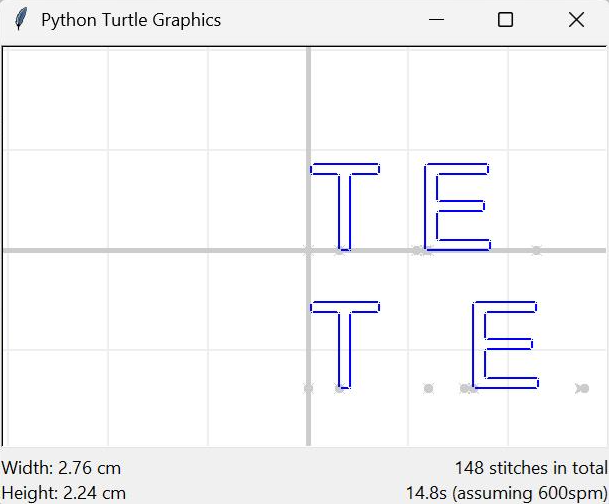
The default letter gap scale factor is -0.1.
Drawing Strings (ld.draw_string)
ld.draw_string is a variation of ld.draw_one_letter that can draw entire strings. Note that spaces are also represented as
' '.
 1import turtlethread
 2
 3turtle = turtlethread.Turtle()
 4with turtlethread.LetterDrawer(turtle) as ld:
 5    ld.load_font('Arial')
 6    ld.load_font('Calibri')
 7
 8    ld.draw_one_letter('Arial', 'T', 120)
 9    ld.draw_letter_gap()
10    ld.draw_string('Calibri', 'EX', 120)
11    ld.draw_letter_gap()
12    ld.draw_one_letter('Arial', 'T', 120)
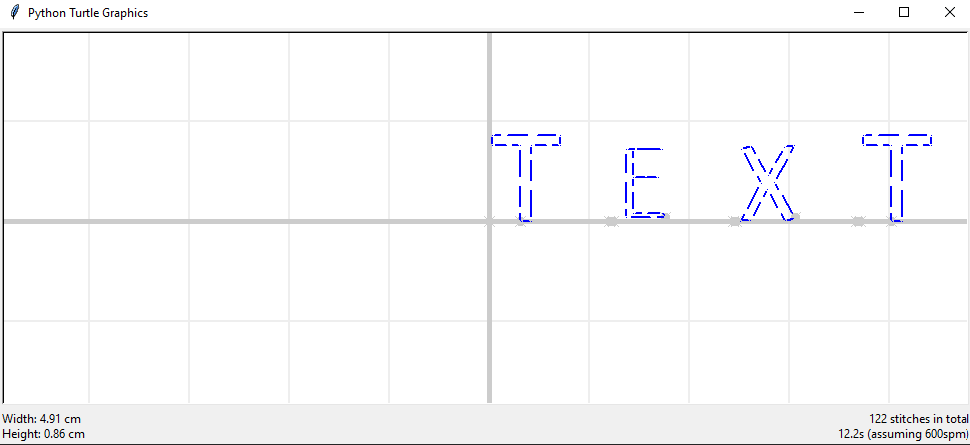
The syntax is similar to that of ld.draw_one_letter. Refer to the API reference.
Text Outline and Fill
When embroidering text, we can choose to outline it. To outline text in ld.draw_one_letter or ld.draw_string,
we set outline=True.
1import turtlethread
2
3turtle = turtlethread.Turtle()
4with turtlethread.LetterDrawer(turtle) as ld:
5    ld.load_font('Calibri')
6    # Note that for ld.draw_string, the parameter is "outlines" and not "outline"!
7    # More details can be found in the API reference.
8    ld.draw_string('Calibri', 'Hi', 120, outlines=True)
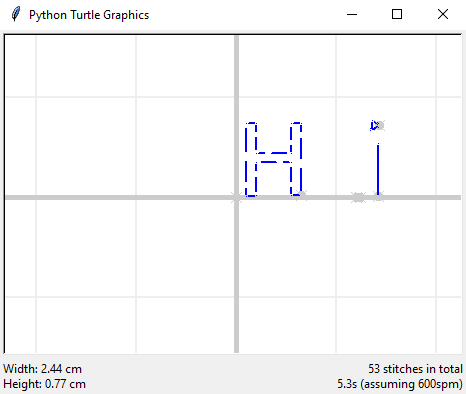
Outlining text is recommended for relatively small text sizes (less than 150), and preferred over fill as the fill can get messy with small text sizes.
We can also choose to use satin stitch for a cleaner outline of the text by setting the outline_satin_thickness
paramter, however this will make the code take much longer to run.
We can also choose whether or not to fill text. We can either choose no fill, partial fill, or full fill. The below code illustrates the three possibilities.
 1import turtlethread
 2
 3turtle = turtlethread.Turtle()
 4with turtlethread.LetterDrawer(turtle) as ld:
 5    ld.load_font('Arial')
 6
 7    ld.draw_one_letter('Arial', 'B', 120, outline=True, fill=False) # No fill
 8    ld.draw_letter_gap()
 9    ld.draw_one_letter('Arial', 'y', 120, outline=True, fill=True, full_fill=False) # Partial fill
10    ld.draw_letter_gap()
11    ld.draw_one_letter('Arial', 'e', 120, outline=False, fill=True, full_fill=True) # Full fill
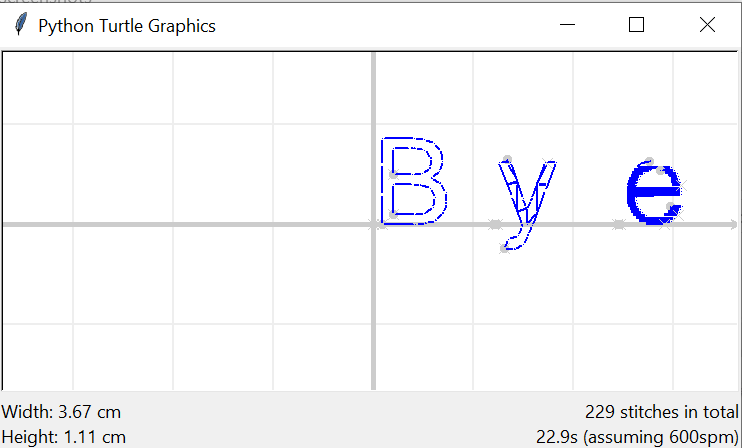
No fill - When having no fill, you should outline the text to make it visible (unless it is intentional to make it invisible)
Partial fill - IMPORTANT NOTE: Partial fill support was dropped at version 0.2.2. This option is no longer available. - When using partial fill, it is recommended to also outline the text. This is because the partial fill will look extremely messy without the outline to go with it. - Note that partial fill is still partially experimental, and might sometimes fill out of the boundaries of the character. - Partial fill requires dependencies found only in the full version of TurtleThread.
Full fill - When using full fill, it is not recommended to outline the text, as the edges of the text might already have stitches from the fill, and adding more stitches on top of them might cause the machine to get jammed. - Note that full fill is still partially experimental, and might sometimes not fill the entire character.
Example and Walkthrough
Here is an example of the text functionality in TurtleThread.
 1import turtlethread
 2
 3turtle = turtlethread.Turtle()
 4with turtlethread.LetterDrawer(turtle) as ld:
 5    # We can use the letter drawer in this indented area
 6    ld.load_font('Arial')
 7    ld.load_font('Calibri')
 8
 9    # Draw "TEXT" with different fonts
10    ld.draw_one_letter('Arial', 'T', 120, fill=False, outline=True)
11    ld.draw_letter_gap() # We must have a letter_gap if we're using ld.draw_one_letter
12    ld.draw_string('Calibri', 'EX', 120, fills=False, outlines=True) # ld.draw_string handles letter_gaps inside
13    ld.draw_letter_gap()
14    ld.draw_one_letter('Arial', 'T', 120, fill=False, outline=True)
15
16    ld.draw_letter_gap()
17    ld.draw_string('Arial', ' ', 120)
18    ld.draw_letter_gap()
19
20    # Fill types
21    ld.draw_string('Arial', "SAM", 120, fills=True, outlines=False, full_fill=True) # Full fill - best used without outline
22    ld.draw_string("Arial", "PLE", 120, fills=True, outlines=True, full_fill=False) # Prtial fill - best used with outline
23
24# From here on, this unindented code cannot use LetterDrawer.
25turtle.fast_visualise() # use fast visualization as fills can take a long time
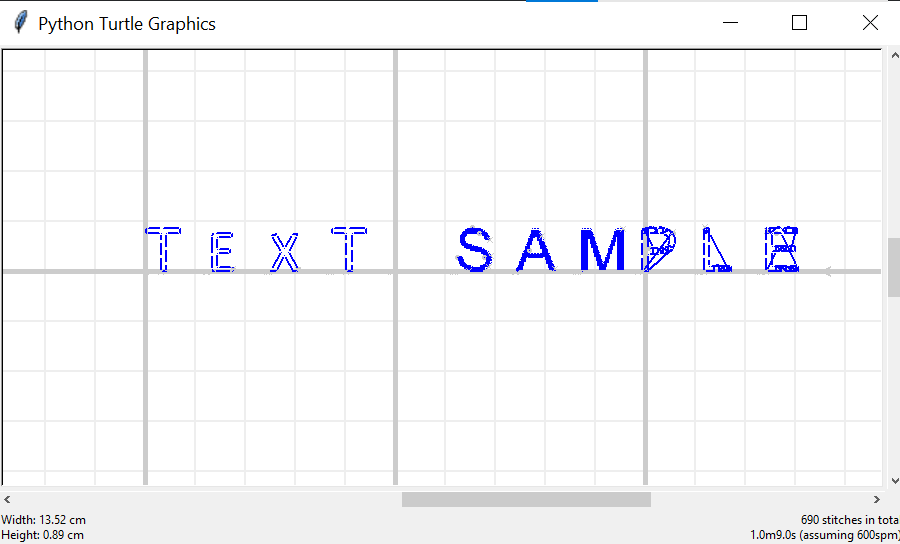
- Unpacking the above code:
Line 3:
with turtlethread.LetterDrawer(te) as ld:creates the letter drawer that can be used. From here on, theldvariable can be accessed, until the end of the indented block.Line 5:
ld.load_font(fontname)loads the Arial font from the system’s font files.Line 9:
ld.draw_one_letter(fontname, letter, fontsize)draws one letter, given a font name, letter, and font size. You can also choose whether it should be outlined or not, as well as whether it is filled or not. If it is filled, you can choose between partial fill and full fill by settingfull_filltoFalseorTruerespectively. More details are in the API reference.Line 10:
ld.draw_letter_gap(fontsize)is used to draw the gap between two letters, and should be used withdraw_one_letter.Line 11:
ld.draw_stringis similar told.draw_one_letterexcept it draws an entire string instead. Also, instead of parameters namedfillandoutline, it has the parametersfillsandoutlines, which can be a single boolean value or a list of boolean values.Line 25:
te.fast_visualise()function will visualise the drawing faster, as text fill may take a long time.